
User Guide
Find guidance on how to use the Low-Temperature Electrolysis CO2 Conversion Tool.
The interactive tool provides six tabs in which to input and view techno-economic data: Process Flowchart, Cost Breakdown Chart, OPEX/CAPEX Costs, Life Cycle Inventory, Monte Carlo, and Sensitivity Plot.
Process Flowchart
To begin a new techno-economic assessment, start with the Process Flowchart tab. The Process Flowchart tab shows the high-level flow diagram and material flows through the various unit operations. These material flows are not directly adjustable but rather are calculated from the Data Inputs parameters, such as CO2 Feed Rate, CO2 Single Pass Conversion, and Faradaic Efficiency shown below the process flow diagram.
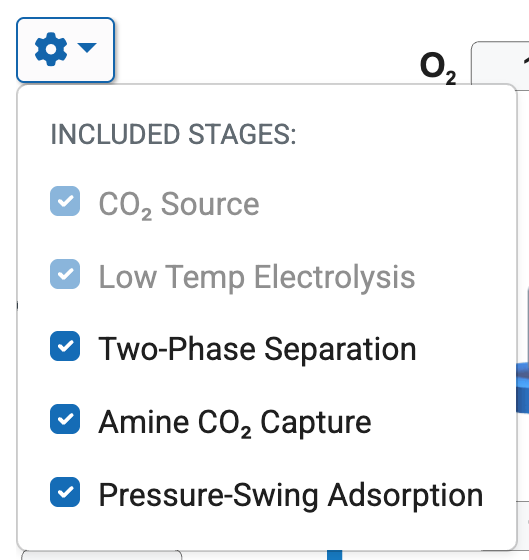
To alter the configuration of the process flow diagram and modeled unit operations, the tool offers some flexibility to switch on/off some of the back-end separation blocks, depending on user preference. To adjust the configuration of back-end unit operations, click the settings gear in the top left corner of the process diagram and select preferred configuration as shown below.
The heart of the tool and analysis capabilities lies in the data inputs section provided below the process flow diagram. In this section over 20 inputs can be directly manipulated across categories of electrolyzer technical performance, scale and market assumptions, and financial calculation parameters. By default, the tool provides initial estimates for each variable corresponding approximately to the current state of the art for CO2>CO electrolysis performance and/or market conditions. Therefore, if there's unfamiliarity with some parameters or an uncertainty of their impact, the default values should provide a good initial starting point. The acceptable range for each parameter is shown in light gray text. For more information on individual parameters and their definitions, refer to the assumptions and definitions.
As data inputs are modified, the impact on product selling price automatically recalculates and displays at the top of the page, listed in terms of $/kg. The product selling price may be displayed choosing one of two TEA methodologies: Minimum Selling Price or the Levelized Cost of Product. For more information on the distinction between these two methods, refer to the assumptions and definitions.

Cost Breakdown Chart
After data inputs are finalized and any modifications to the process flow diagram are completed, a visualization of the product selling price is displayed showing the impacts of key areas to cost. These key cost drivers are normalized in terms of $/kg CO and color-coded by category across capital, variable operations and maintenance O&M), fixed O&M, and feedstock costs.
OPEX/CAPEX Costs
Raw numerical values are provided for major operating expenditures (OPEX) and capital expenditures (CAPEX) based on defined data inputs in the Process Flowchart tab.
Life Cycle Inventory
Based on data inputs, an inventory of the key material and energy flows across the system is displayed. The CO2 intensity associated with each material or energy flow is tabulated and the resultant impact on net carbon flows is calculated. Further, consider manipulating the source of energy used in the analysis and create a custom blend of U.S.-based electricity depending on your preference. For more information on life cycle inventory calculations, refer to the assumptions and definition.
Monte Carlo
The Monte Carlo tab allows for personalized uncertainty analysis and assesses the impact of specific variables across up to 10,000 randomized simulations. Upon navigating to the Monte Carlo tab, make three required inputs: (1) provide the total number of simulations desired between 100 and 10,000; (2) select the target parameters to vary; and (3) provide the minimum and maximum allowed values for each variable in the study.
Once these inputs are completed, click Run Simulations. The tool will initiate the Monte Carlo analysis. For each run, the model will default to using the parameters listed in the Data Inputs section of the Process Flowchart, except for the user-defined parameters on the Monte Carlo tab. For these select parameters, the code will randomly generate a value between the listed minimum and maximum value assuming a flat distribution. This process is repeated for the total number of simulations listed, and a histogram of the observed range of calculated selling prices is populated.
Once the histogram has been fully populated, navigate to and click on individual bars within the histogram to see the results of each "bin" of data. This provides information on what combination of parameters give rise to a specific range of selling prices and may be useful to help inform target setting.
Sensitivity Plot
The Sensitivity Plot tab provides the ability to assess how two parameters simultaneously affect selling price and the magnitude of their correlation. At the bottom of the tab, select any two parameters from the list of data inputs listed on the Process Flowchart tab and the respective target range.
Share

Last Updated Feb. 25, 2026